How to Fix Stringing, Blobs, and Under-Extrusion: Complete Troubleshooting Guide
Research-based buying advice, not a hands-on test. Specifications, prices and availability can change. How we research and compare printers.
Nothing is more frustrating than watching your 3D printer create a mess of stringy cobwebs, unsightly blobs, or prints with visible gaps and thin layers. These three common issues—stringing, blobs, and under-extrusion—plague beginners and experienced makers alike. The good news? They're all fixable with the right approach.
In this guide, we'll walk you through the causes and solutions for each problem, helping you achieve cleaner, more professional prints.
Understanding the Three Problems
Before diving into fixes, let's clarify what each issue looks like:
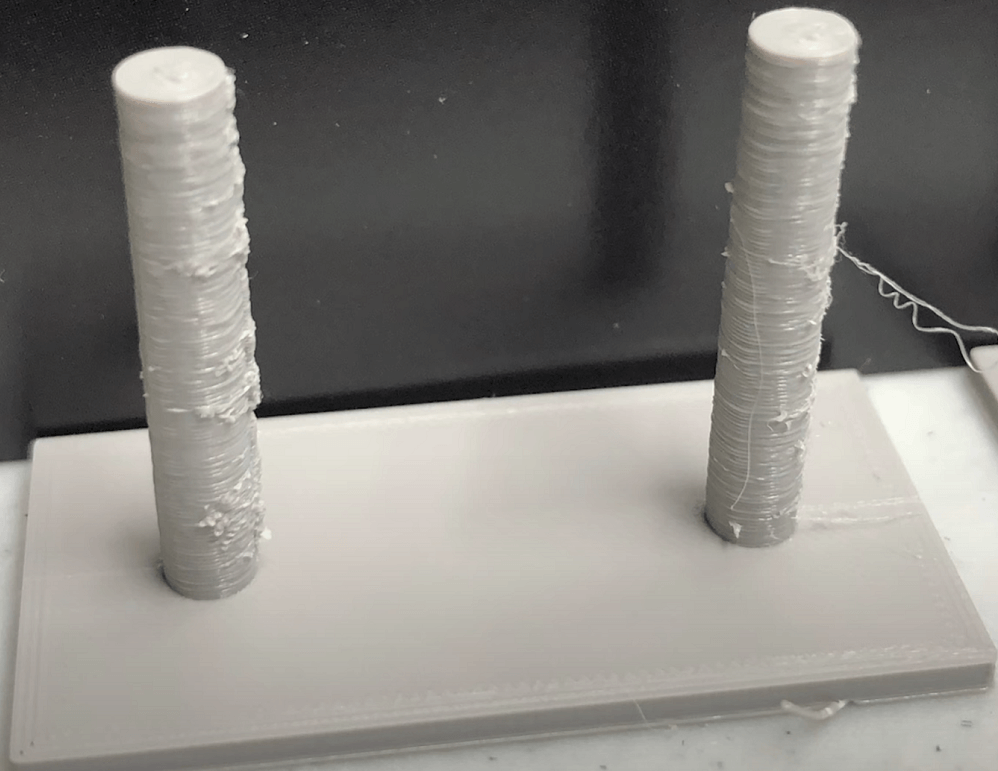
Stringing appears as thin, hair-like threads stretching between different parts of your print. It happens when melted filament oozes from the nozzle during travel moves.
Blobs are small bumps or zits on your print surface, often appearing at layer starts or where the nozzle changes direction.
Under-extrusion manifests as thin or missing layers, visible holes in the structure, or gaps between perimeters. Your prints may feel weak or look incomplete.
How to Fix Stringing
Stringing is one of the most common print quality issues, especially with materials like PETG. Here's how to eliminate it:
Adjust Retraction Settings
Retraction is your primary weapon against stringing. Retraction controls the filament pullback during non-printing movements, preventing stringing and blobs.
- Retraction distance: Start with 1-2mm for direct drive extruders or 4-6mm for Bowden setups. Increase in small increments if stringing persists.
- Retraction speed: Try speeds between 25-45mm/s. Too slow allows oozing; too fast can grind the filament.
Lower Your Nozzle Temperature
Excessive heat makes filament more runny and prone to oozing. Try lowering your temperature by 5°C increments until stringing reduces while maintaining good layer adhesion. For PETG specifically, start by lowering nozzle temperature in small steps while maintaining bonding, then tune retraction and travel settings.
Increase Travel Speed
Faster travel moves give melted filament less time to ooze. Try increasing your travel speed to 150-200mm/s if your printer can handle it reliably.
Use Coasting and Wipe
How to Fix Blobs and Zits
Blobs often share causes with stringing but require slightly different solutions:
Fine-Tune Retraction
While under-retraction causes stringing, over-retraction can create blobs when the extruder pushes filament back out. The size of the blobs can provide guidance as to whether you are retracting too much or too little.
Check Filament Quality and Moisture
Wet filament is a major cause of blobs. Absorbed moisture turns to steam inside the hot end, creating bubbles and inconsistent extrusion. Dry your filament in a filament dryer or low-temperature oven (around 50°C for PLA, 65°C for PETG) for 4-6 hours.
Adjust Seam Settings
Blobs often appear at layer seams. In your slicer:
- Set seam position to "nearest" or "rear" to concentrate them in one area
- Enable "wipe" or "coasting" at layer ends
- Consider using "random" seam placement to distribute small blobs invisibly
Calibrate Flow Rate
Over-extrusion can create blobs. Print a calibration cube and measure wall thickness to verify your flow rate is accurate.
How to Fix Under-Extrusion
Under-extrusion is often more serious, potentially ruining prints entirely. Common causes include a partially clogged nozzle which restricts filament flow, incorrect flow rate settings in your slicer, and uncalibrated extruder steps/mm.
Check for Nozzle Clogs
A partially blocked nozzle is the most common culprit. Try these steps:
- Heat the nozzle to printing temperature
- Perform a cold pull (atomic pull) with nylon or cleaning filament
- Use a cleaning needle to clear debris
- If problems persist, replace nozzles if you see persistent under-extrusion, rough extrusion, inconsistent line width, or after extensive abrasive filament use
Raise Nozzle Temperature
Insufficient heat means filament can't flow quickly enough. Increase temperature in 5°C increments, staying within the manufacturer's recommended range for your filament.
Calibrate E-Steps
If your extruder isn't pushing the correct amount of filament, no other fix will help. Mark 100mm on your filament above the extruder, command 100mm extrusion, and measure what remains. Adjust your E-steps accordingly.
Check the Filament Path
Inspect for:
- Kinked or tangled filament on the spool
- Worn extruder gears that can't grip filament
- PTFE tube damage or poor fittings
- Incorrect tension on the extruder arm
Slow Down Print Speed
Printing too fast can outpace your hot end's ability to melt filament. Reduce speed by 20% and see if extrusion improves.
Printer Considerations
Some printers handle these issues better out of the box than others. The Bambu Lab P1S ($549) and Prusa MK4S ($729) come well-calibrated with reliable extrusion systems, reducing troubleshooting time. Budget options like the Creality Ender 3 V3 SE ($169) are excellent values but may require more tuning to dial in perfect prints.
Interestingly, even premium printers can have issues. The Creality K1C had massive under-extrusion issues out of the box that caused prints to fall apart, though such behavior can usually be tuned out with proper calibration.
If you're unsure which printer best fits your needs and troubleshooting tolerance, try our quiz to get personalized recommendations.
Prevention Tips
Once you've fixed these issues, keep them from returning:
- Store filament properly in sealed containers with desiccant
- Maintain your printer with regular cleaning and lubrication
- Use quality filament from reputable manufacturers
- Keep spare nozzles on hand for quick replacements
- Document your settings when you find what works
FAQ
Why does my printer string with PETG but not PLA?
PETG is naturally more stringy due to its higher printing temperature and viscosity. You'll typically need more aggressive retraction settings and lower temperatures (while still maintaining bed adhesion) compared to PLA.
How often should I replace my nozzle?
Standard brass nozzles printing regular PLA can last hundreds of hours. However, if you use abrasive filaments like carbon fiber or glow-in-the-dark materials, switch to hardened steel nozzles and expect to replace them more frequently.
Can wet filament cause all three problems?
Yes! Moisture in filament creates steam bubbles that cause inconsistent extrusion—leading to stringing, blobs, and under-extrusion simultaneously. If you're experiencing multiple issues at once, try drying your filament first.
Should I adjust one setting at a time or multiple?
Always change one setting at a time and print a test object between changes. This way, you'll know exactly which adjustment solved (or worsened) the problem.
What's the best test print for diagnosing these issues?
A retraction tower tests stringing across different retraction values. A temperature tower helps find optimal temperature. For under-extrusion, a simple calibration cube reveals wall gaps and layer adhesion issues effectively.
Sources
- Stringing! how to fix that? – Prusa3D Forum
- How to solve the problem of insufficient or excessive 3D printing output – Sovol3D
- How to Fix Under Extrusion: Maintenance and Print Settings – Wevolver
- 3D Printing Troubleshooting: Common 3D Printing Issues & How to Fix Them – Additive Plus
- 3D Printer Calibration Checklist 2026 – Smith3D Malaysia
- The 3 Best 3D Printers of 2026 – Wirecutter
Not sure which printer to buy?
Take our 2-minute quiz and get a personalised recommendation.
Find my printer →